How to update FulGaz
Last updated Almost 2 years ago
To ensure you have the latest features and fixes, it is important to keep FulGaz up to date.
Most devices will update your FulGaz app automatically when installing regular updates, but in some cases you may need to head to the App Store on your device and manually install pending updates.
We recommend switching on automatic updates for your device. For the latest version information please view the FulGaz update log.
You can view your current version number in the top right corner of the opening app screen.

iOS / tvOS / MacOS (iPad, iPhone, Apple TV & Mac)
1. Open the App Store icon on your device's home screen
2. Tap on the search option (magnifying glass) in the lower right corner
3. Type "FulGaz" into the search box
4. If there is a pending update, the app page will say UPDATE (instead of open)
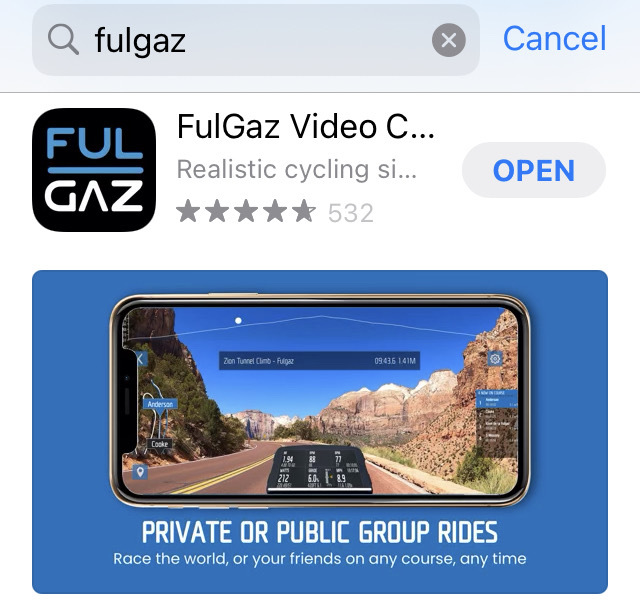
5. Tap on UPDATE to install the newest version
Windows
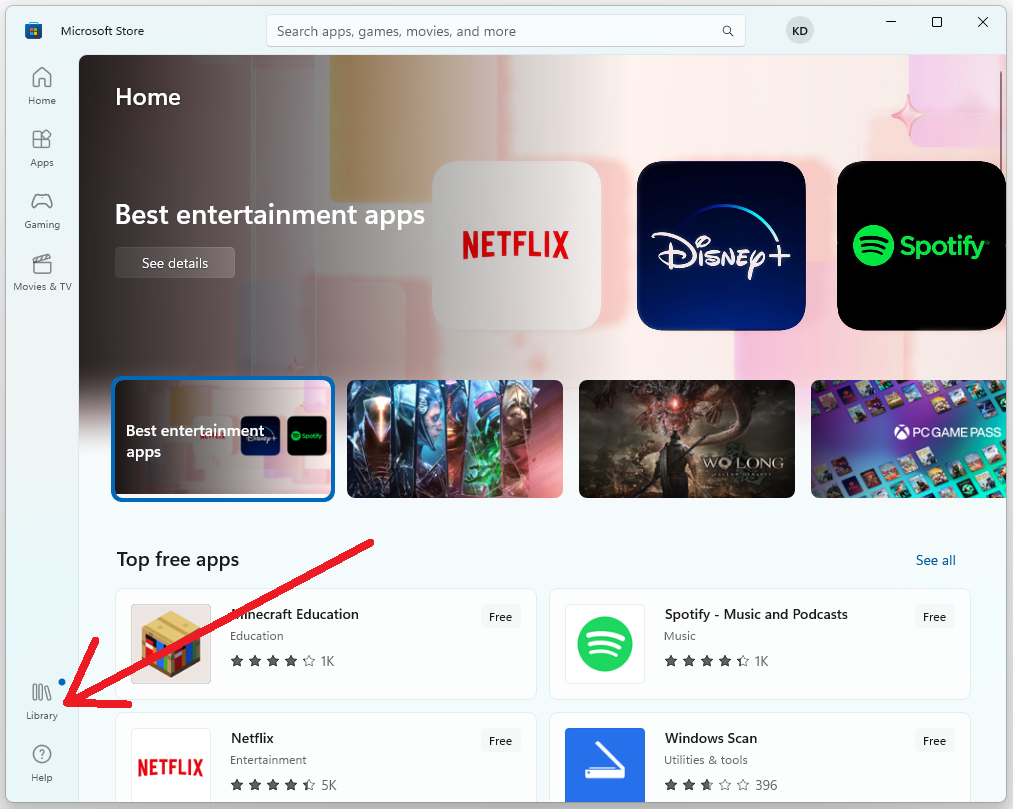
Open the App Store icon on your tablet home screen, or head to the App Store on your PC or laptop by searching for it in your Windows menu
App Store Link - https://www.microsoft.com/en-us/p/fulgaz/9n8l935mvwgt
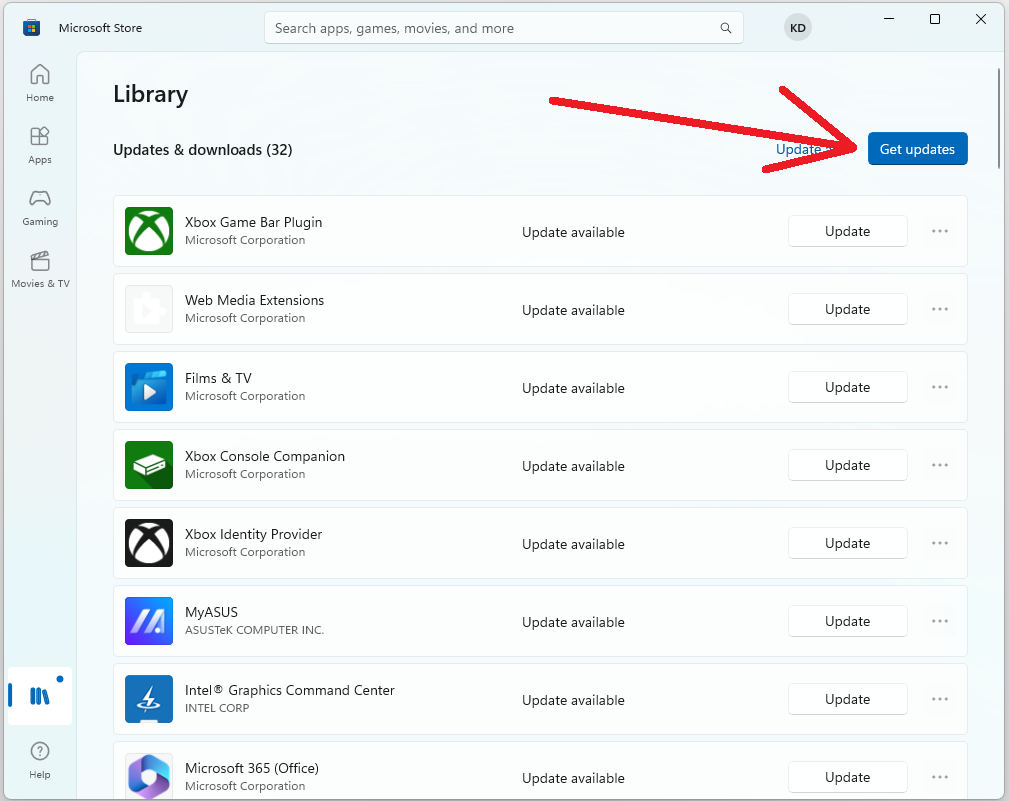
You can check for an update by opening the Microsoft Store on your device, then tapping the "Library" icon, and then "Get Updates" to load any pending ones.
Android tablet & phone
1. Open the Google Play Store on your device's home screen
2. Type "FulGaz" into the search box
3. If there is a pending update, the app page will say UPDATE (instead of open)
4. Tap on UPDATE to install the newest version
Was this helpful?
Still need help? Ask the team