Copying videos from a computer to FulGaz
Last updated About 2 years ago
For Windows and MacOS devices, you can download FulGaz videos directly from your Member's Page on the FulGaz website into an additional folder. In your Member's Page you will find the complete list of ride videos in all quality options from 720p through to 4K.
Member's Video Download Portal
Once logged into your Member's Page, scroll down to the DOWNLOADS section to view the video options.
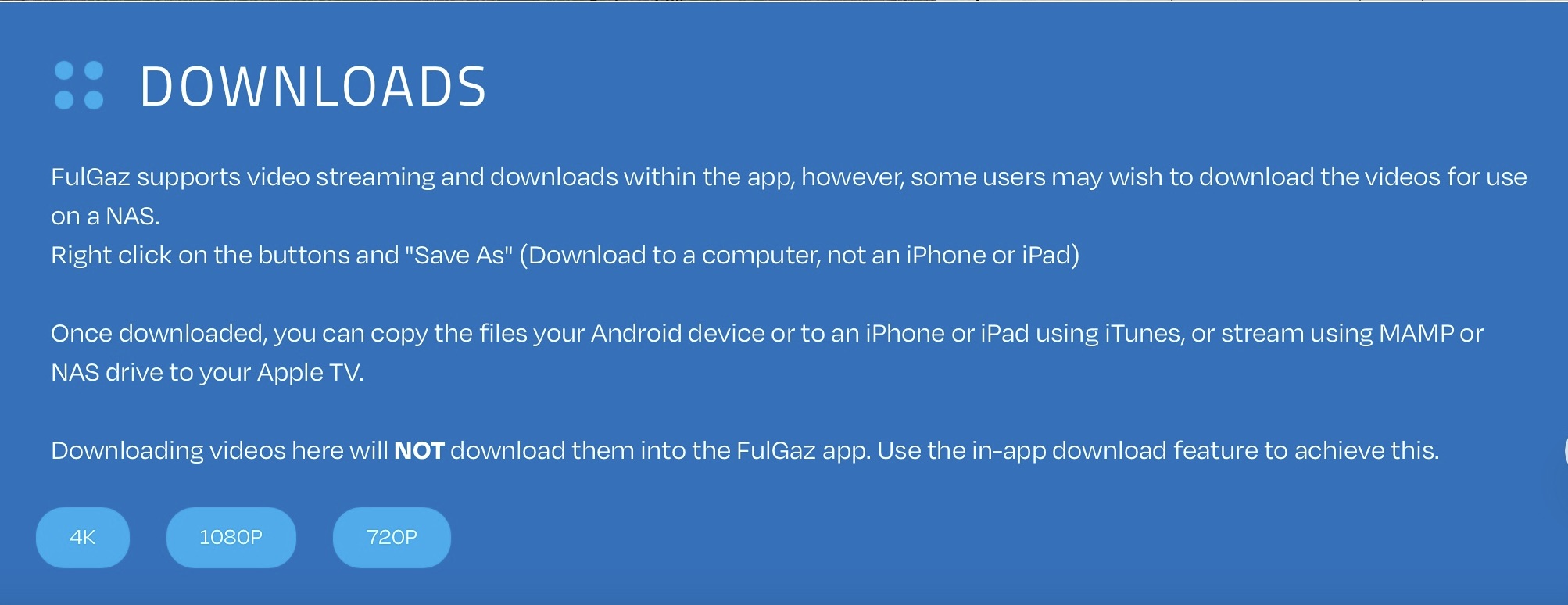
While you cannot change the default download location, with Windows and MacOS you can set up an additional folder where FulGaz will look for videos. This is useful if you have a secondary hard drive or would like to keep your videos in an easily accessible folder on the same hard drive.
Once you have set this folder, you can then download FulGaz videos in your chosen quality format into this folder and FulGaz will display them on your main menu.
To set your additional folder location:
1. Open FulGaz
2. Click the Settings "cog" in the top right corner of the main screen
3. Select Video Settings
4. On the next screen Choose Additional Folder...
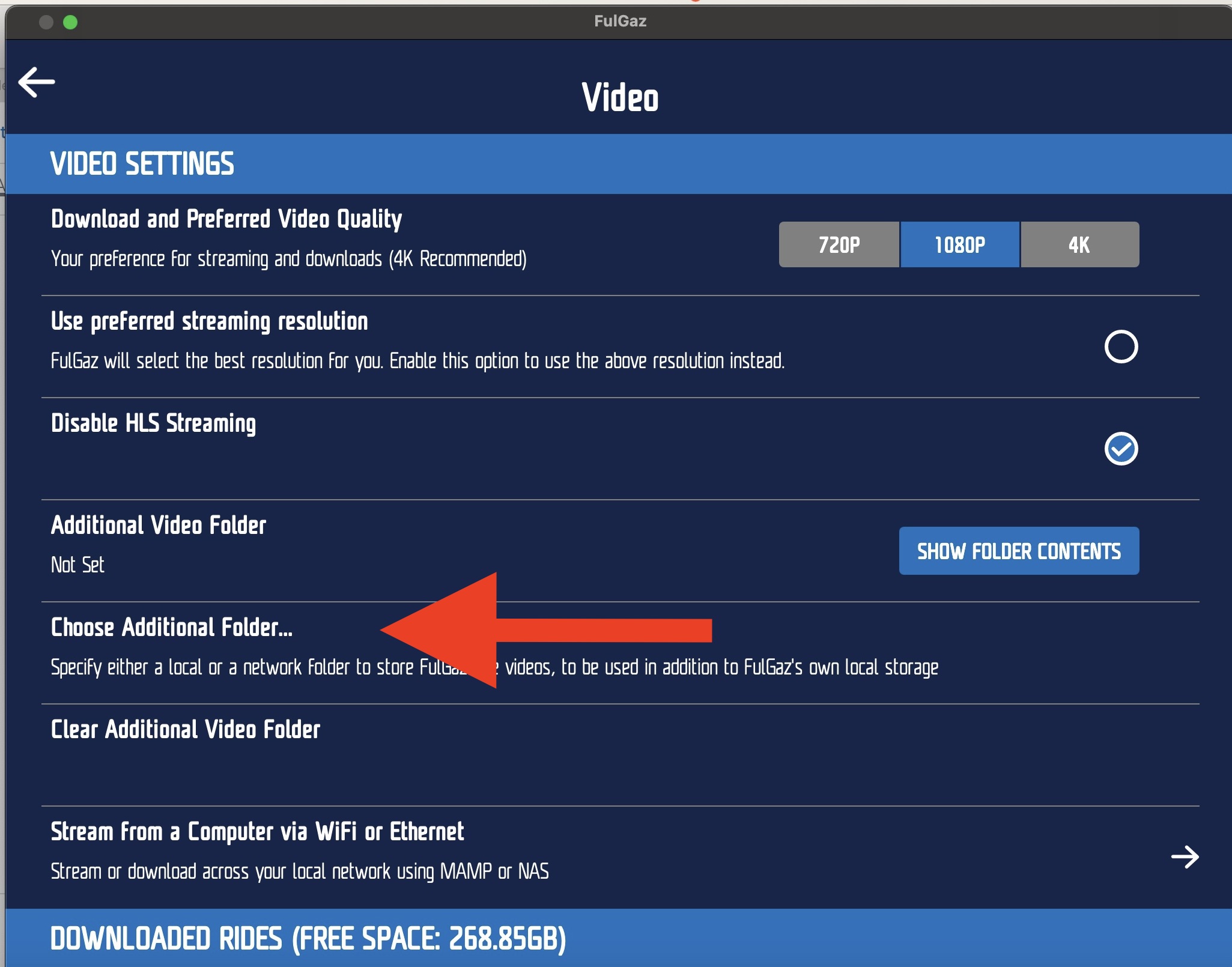
Any ride videos downloaded into this folder will then be displayed on your main menu at the bottom of the screen, under an "Additional Folder" heading.
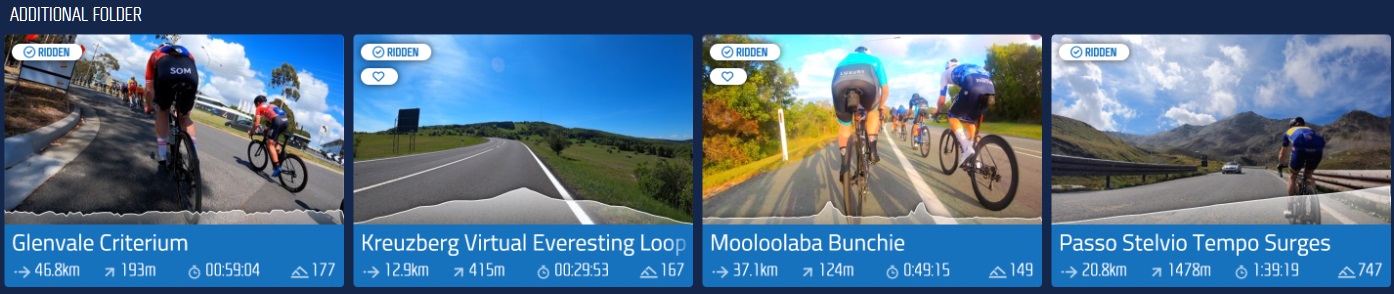
It's important to note that FulGaz will not download directly to this folder, but simply look for videos there. FulGaz will always download videos to the default folder.
Was this helpful?
Still need help? Ask the team