Can I change the default video download folder? (Windows & Mac)
Last updated Almost 2 years ago
While you cannot change the default download location, with Windows and MacOS you can set up an additional folder where FulGaz will look for videos. This is useful if you have a secondary hard drive or would like to keep your videos in an easily accessible folder on the same hard drive.
You can download ride videos from the Ride Search page of the FulGaz website directly into this additional folder. On each ride's page you can select the download quality option for the chosen video, in three versions; 720p, 1080p, or 4K.
Simply select the ride from the list, then at the bottom of the page you can select to download it to your chosen additional folder. FulGaz will display these on the main ride menu when you open the app.
NOTE: This folder feature is not available on iOS, tvOS, or Android.
To set your additional folder location:
1. Open FulGaz
2. Click the Settings "cog" in the top right corner of the main screen
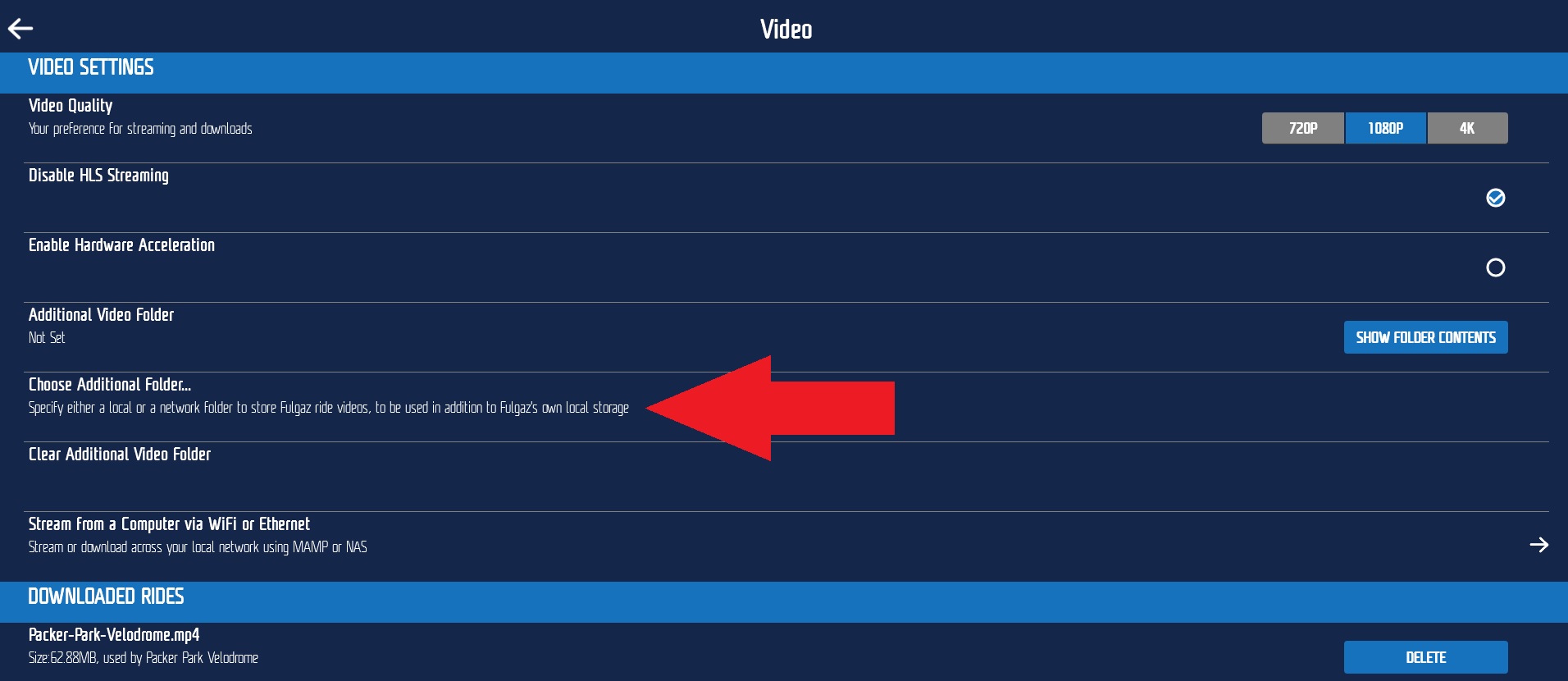
3. Select Video Settings
4. On the next screen Choose Additional Folder...
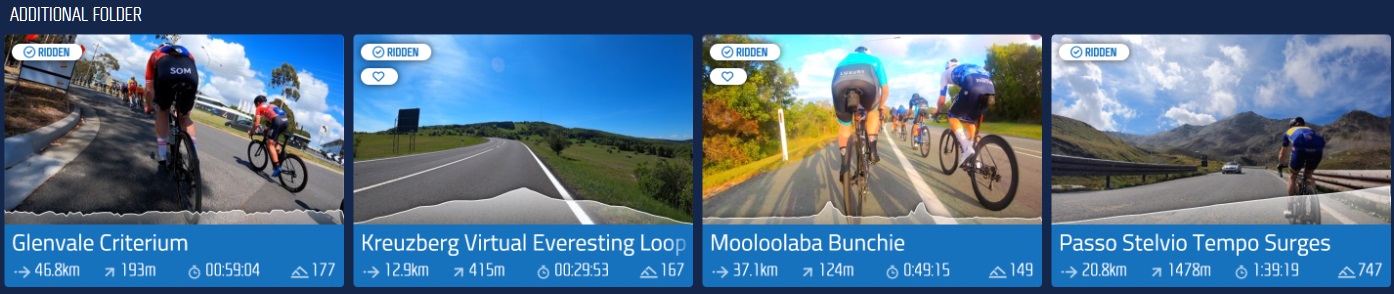
Any ride videos downloaded into this folder will then be displayed on your main menu at the bottom of the screen, under an "Additional Folder" heading.
It's important to note that FulGaz will not download directly to this folder, but simply look for videos there. FulGaz will always download videos to the default folder.
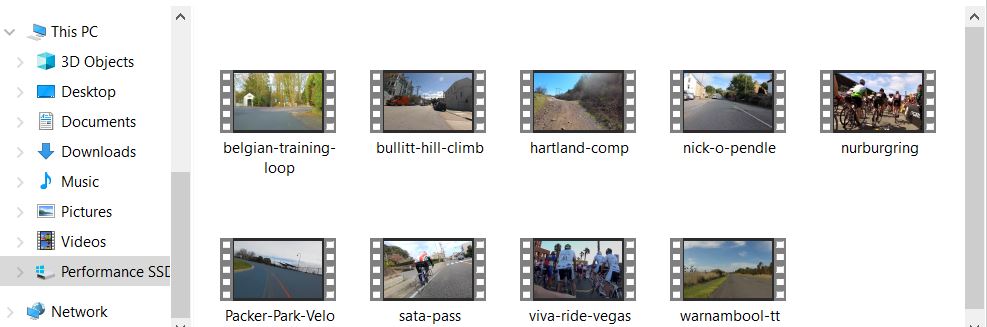
The default FulGaz video folder for Windows will look like either:
\Users\YOURDEVICEUSERNAME\AppData\Local\Packages\BizarMobile.FulGaz_asxhtrxdca8p2\LocalState\ridevideos
or
\Users\YOURDEVICEUSERNAME\AppData\Local\Packages\BizarMobile.FulGaz_asxhtrxdca8p2\LocalCache\Local\FulGaz\ridevideos
To find the default video folder on Mac, open the Finder, and hit Command-Shift-G, that will open the 'Go to folder' dialog. Paste in...
~/Library/Containers/com.bizarmobile.fulgaz/Data/Library/Application Support/FulGaz/
Open that folder, then open the "ridevideos" folder! You can then move these videos to your additional external drive (just be sure the drive is Mac-formatted and not Windows-formatted).
Was this helpful?
Still need help? Ask the team